Smart thermostat geofencing not working? Audit every phone before the thermostat
Check background location, household membership, competing schedules, and the event log before changing HVAC settings or resetting hardware.
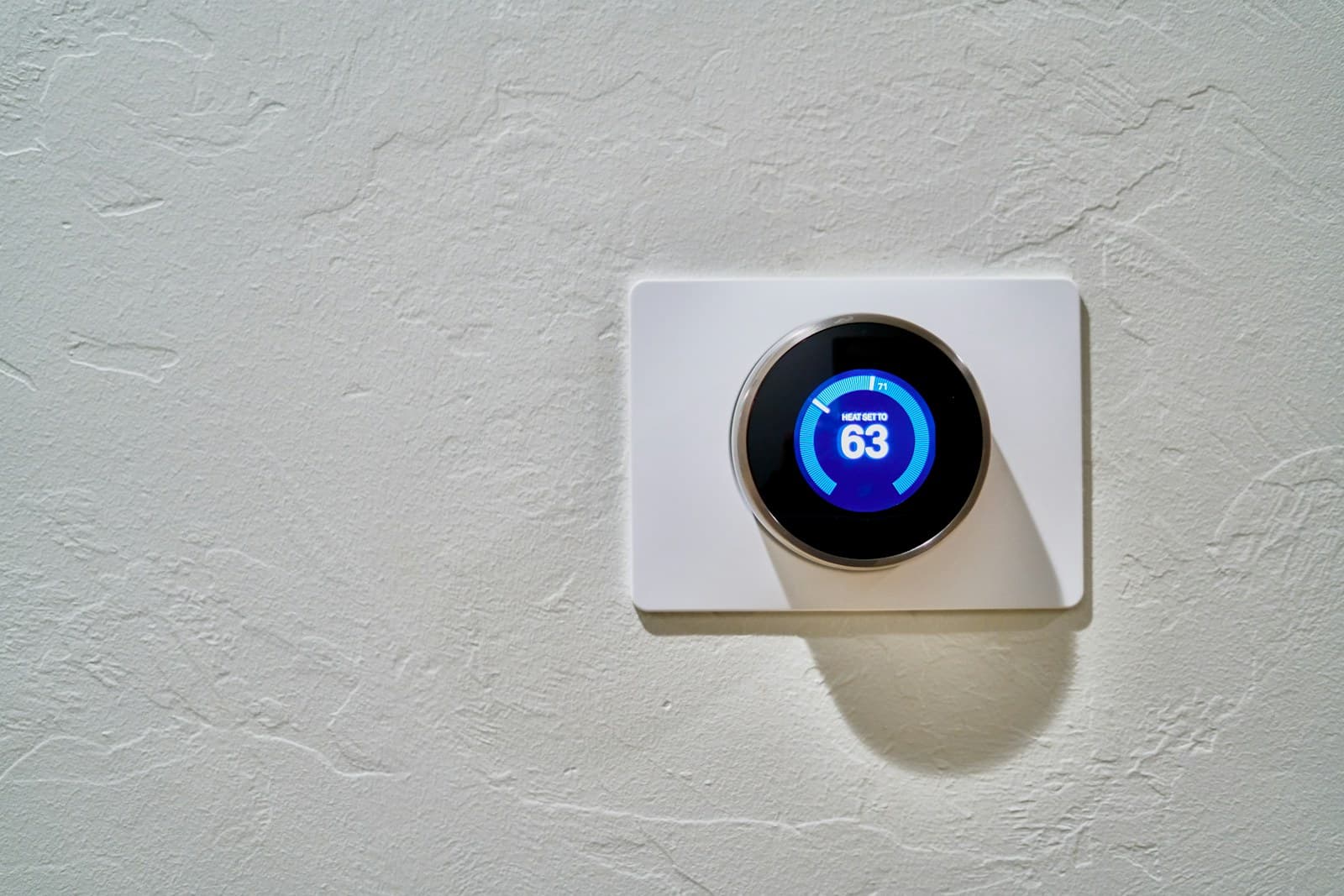
The thermostat does not follow you. Your phone reports a home-or-away signal to an app, and the app applies a household rule. One stale phone, revoked permission, old account member, or competing schedule can make good thermostat hardware look confused.
Do not reset the wall unit first. Build a one-day timeline from the app’s presence history, thermostat mode, schedule, and the phones that were actually carried out of the house.
The short answer
Geofencing depends on the phone, app permission, account, home membership, internet path, and household rule. Start with the event history and one failed arrival or departure. On every participating phone, verify the correct app and home, background location access, precise location where required, and battery settings that allow the app to run. Check that old phones and former residents are removed. Then separate location logic from schedules and device sensors. Use a manual schedule until the home/away record becomes reliable.
Start with one failed event
Choose a specific missed arrival or departure. Record the time each participating phone crossed the home boundary, what the app reported, the thermostat mode and setpoint, any hold or schedule, internet status, and whether another person remained home. In Google Home, the Activity tab records geofence entries and exits. A correct crossing with the wrong temperature points toward automation priority; no crossing points toward phone, permission, account, or network state.
Audit location permission on every participating phone
On iOS, follow the thermostat app’s current instructions for Always location access. On Android, allow the location level and precise-location setting the app requires. Honeywell Home also says optimization apps should exclude the Resideo app because ending its background service can make reporting inconsistent. Check cellular data, Wi-Fi scanning, background refresh, and battery restrictions without turning off unrelated privacy controls. Write down the original settings before changing one item.
Clean up the household roster
List every user and phone contributing to presence. Remove an old handset, tablet, test account, or former resident only through the platform’s documented member controls. Confirm that each current person uses their own account and has enabled location-based control. A phone left at home can keep the house Home; an untracked guest can be left in a house that switches Away. Honeywell’s T10 documentation says the last person leaving and first returning govern multi-user geofencing when every user is set up correctly.
Separate location from schedules and sensors
Temporarily use a safe fixed schedule or manual Home/Away control while diagnosing. Review vacation mode, temperature holds, smart recovery, occupancy sensors, utility programs, and third-party automations. Google explains that phone location, Wi-Fi presence, and eligible device sensors can all affect presence; a sensor event can delay Away. Do not disable freeze protection, heat safety limits, or equipment safeguards for a geofence test.
Retest one departure and one return
After one documented correction, carry the participating phones normally and record the last-person-leaves and first-person-returns events. Confirm both the presence log and resulting thermostat mode. If the crossing remains absent, send support the phone model, operating system, app version, account/home membership, permission screenshots, event times, and thermostat status. My opinion: a predictable schedule is better than unreliable geofencing. Keep the fallback until several ordinary trips produce the right record.
Put the guide to work
Field notes
- Permission clue
- The failure began after a phone or app update, privacy change, battery-saver setting, logout, or new phone. Honeywell Home says Resideo geofencing needs full location access and background operation.
- Household clue
- Away never starts, or it starts while somebody remains home. Honeywell says its multi-user control follows the last person to leave and first to return; each user needs a separate account and must enable the feature.
- Competing-signal clue
- The event log shows the correct arrival or departure, but the thermostat follows a schedule, hold, occupancy sensor, or another automation instead. Prove which rule wrote the final mode before changing the location radius.
Make the next step useful
Put this guide on your home plan
Know when to call a professional. Stop if work involves active gas leaks, damaged service wiring, structural movement, unsafe heights, suspected contamination, or a problem you cannot confidently isolate.
Editorial review and sources
Reviewed by: Smart Homeowners Editorial Desk
Last reviewed: September 24, 2026
Original Smart Homeowners editorial; not adapted from a third-party article.